If you already have Diablo II Resurrected installed, skip this & go straight to the: Reimagined Installation Guide
Owners of the Steam version of Diablo II Resurrected, instead go to the: Steam Installation Guide
¶ Diablo II Resurrected - Steps for Installing the Battle.net App Version
The purpose of this page is to show the required steps for installing the Diablo II Resurrected game, as you'll need the game to be installed before you can install the mod Reimagined which is covered in a different guide.
First you will need to create a Battle.net account (free) with a login/password with them & purchase the Diablo II Resurrected game on your own from their website.
¶ Step 1: Download the Battle.net Desktop App for Windows 10/11
Go here to download the Battle.net Desktop App:
Battle.net/download/
After installing the Battle.net Desktop App you will use your Battlenet login/password & this will allow access to the games that you have purchased and allow for free game updates.
The Step 1 above is for the USA region, which uses the International installer that should work for most countries.
Europe: Battle.net/eu/ or Battle.net/en-gb/ This client is identical to the US version, but you must select “Europe” in the login region settings.
South Korea: Battle.net/ko-kr/
China: Battlenet.com.cn China operates on a seperate, dedicated version of the app & servers. The international Battle.net app is generally blocked in China.
¶ Step 2: Install the Battle.net Desktop App
Install the Battle.net Desktop App & use your login/password with the account that you purchased Diablo II Resurrected with. Click on the Diablo II: Resurrected game from My Games.
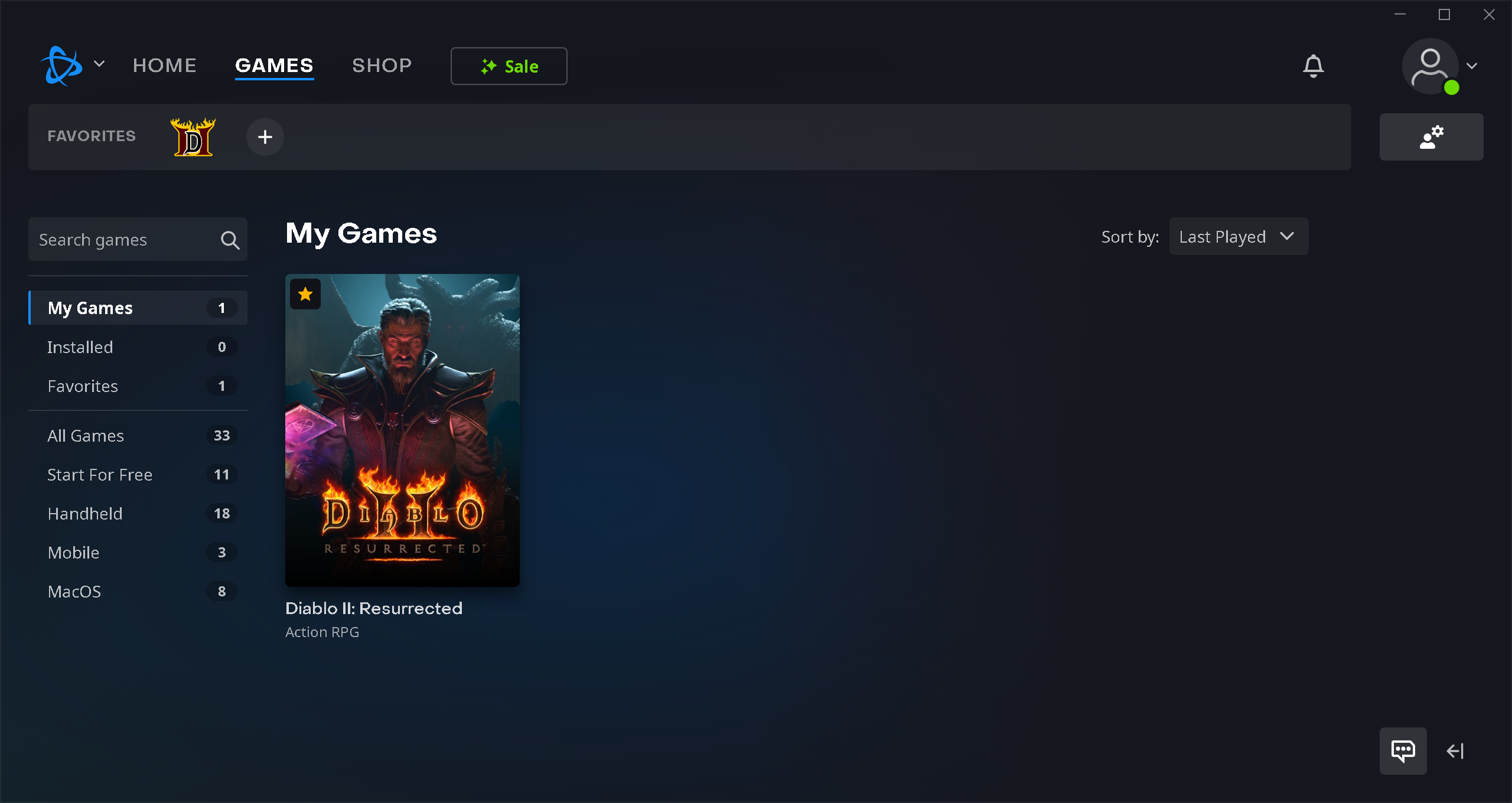

¶ Step 3: Click on Install
Next click the Install button.
This blue button will later change to “Play” after it's installed or to “Update" if an update/patch/hotfix is ready but not performed yet.
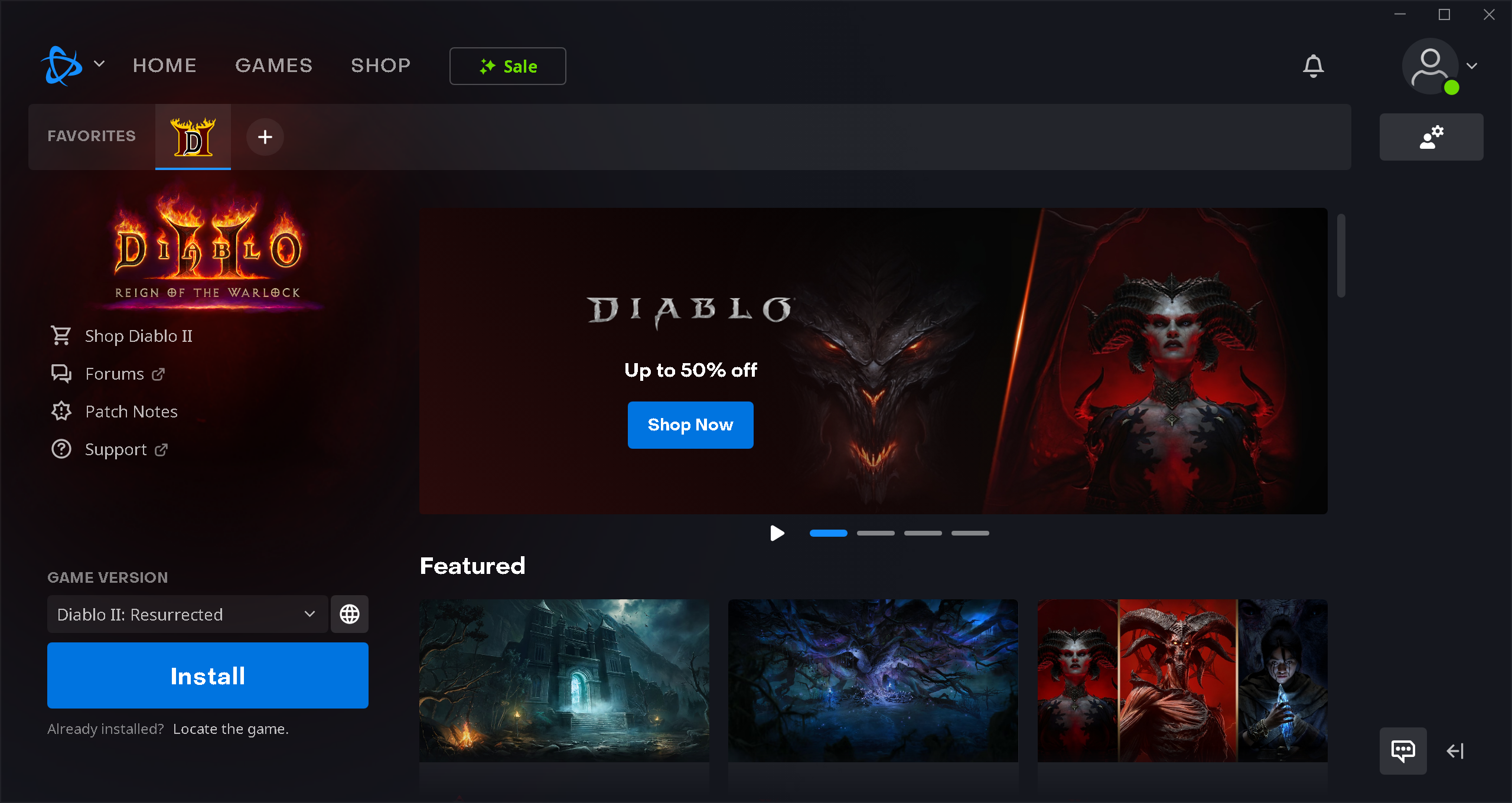
If you already installed the game but had to manually move it, or are reinstalling the Battle.net Desktop App. Then click on “Locate the game” underneath the blue Install button.
¶ Step 4: Optional Installation Settings (Location, Language, Auto-update)
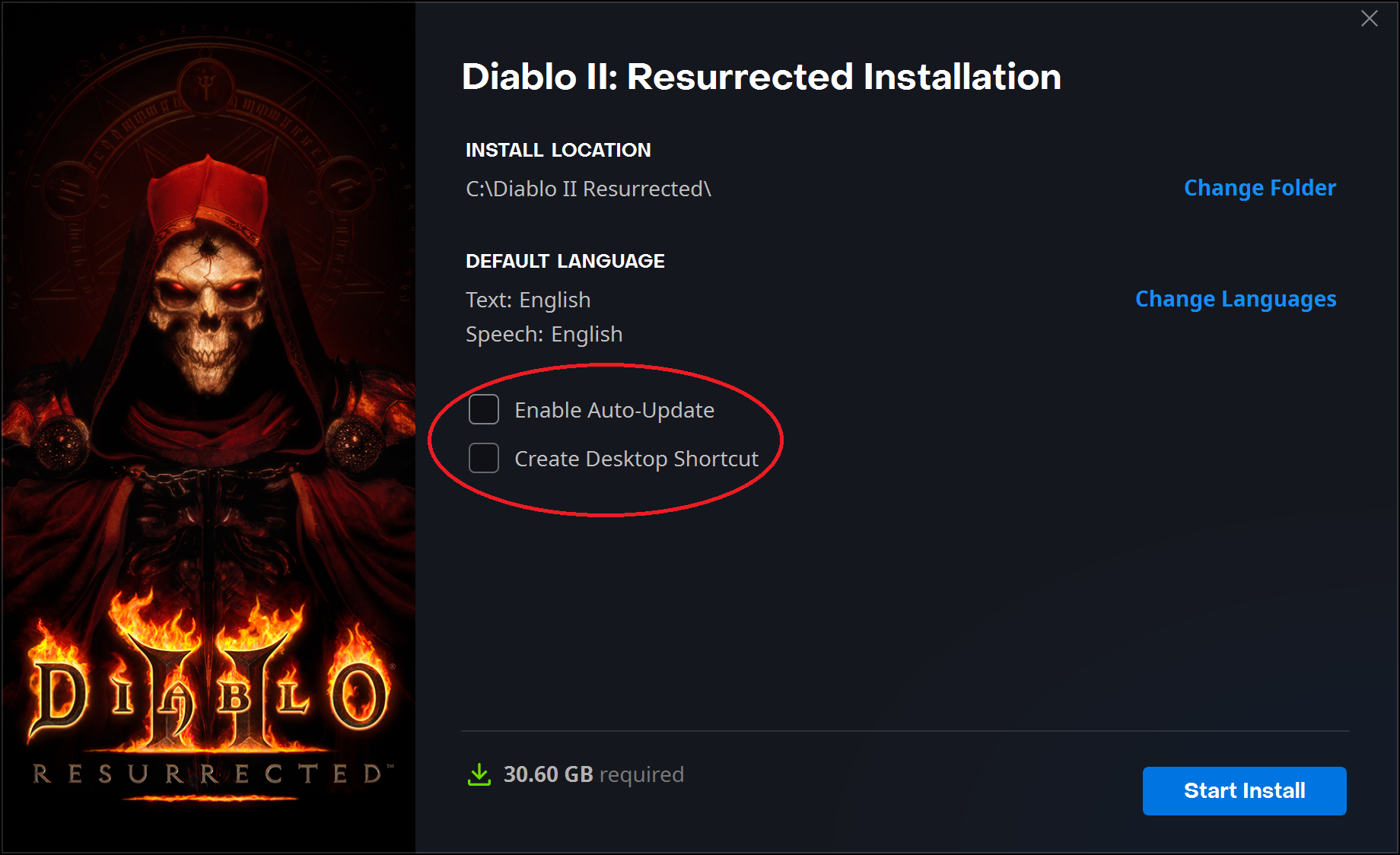
Everything on this Step 4 is optional. It's recommended to uncheck both boxes in the red circle. The reasons are because it's best for you to choose to update the game whenever you're updating the Reimagined mod & not have them apply automatically. Also the Desktop Shortcut this creates also points to a launcher file and not D2R.exe and should be avoided too.
If you wish to install the game in a custom location click “Change Folder”
If you wish to change the text and speech languages click “Change Languages”
Click on “Start Install” to begin the download and install process.
¶ Step 5: Installs the game & is ready to Play!
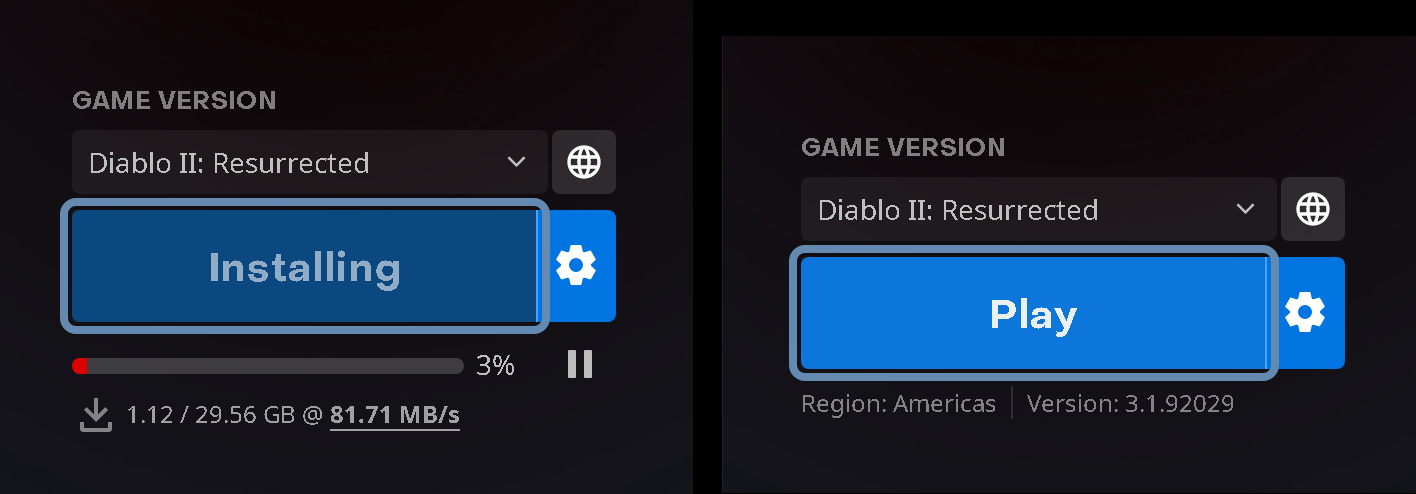
The blue button on the bottom left changes depending on the status of the installation process.
It will change to Play when the game has been fully installed. You can go to the Reimagined Installation Guide for installing the mod next.
Below are some useful tips, but the rest of this page are optional steps.
¶ Step 6: (Optional) Close the Battle.net Desktop App from your tray icon before playing mods
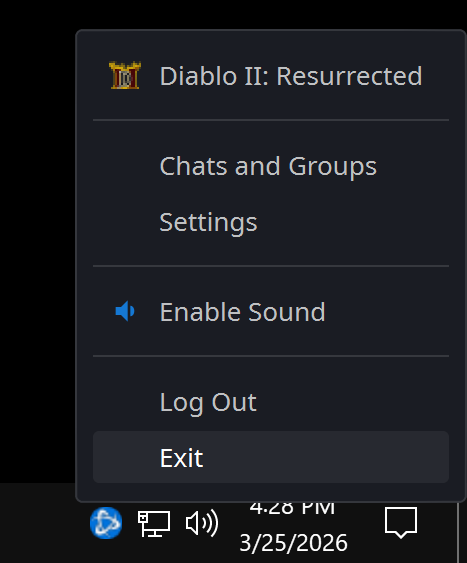
Right click the Blue circle icon in your system tray & click Exit.
Playing the game with or without mods can be started by manually creating a shortcut on your desktop, start menu or taskbar that points to D2R.exe, which bypasses the need for having the Battle.net Desktop App running in the background. More importantly, launching directly from a shortcut pointing to D2R.exe will not trigger automatic Diablo II Resurrected downloads for game patches/hotfixes by their developers.
Sometimes these patches can break offline mod features or content, so it's best to update the game when you're updating the Reimagined mod OR once every 30days with the forced DRM message. Every thirty days, you must open the Battle.net Desktop App & click the blue Play button where the game (without mods running) opens and clears that message for another 30 days. If at that time there's an update, the Battle.net Desktop App will require the game be updated before it can launch at that time.
The Reimagined mod is always designed to work with the current version of Diablo II Resurrected. Around the same time you update the Reimagined mod, it's a good idea to open the Battle.net Desktop App once to check for updates.
¶ Optional: Customizing the Battle.net Diablo II Resurrected Settings
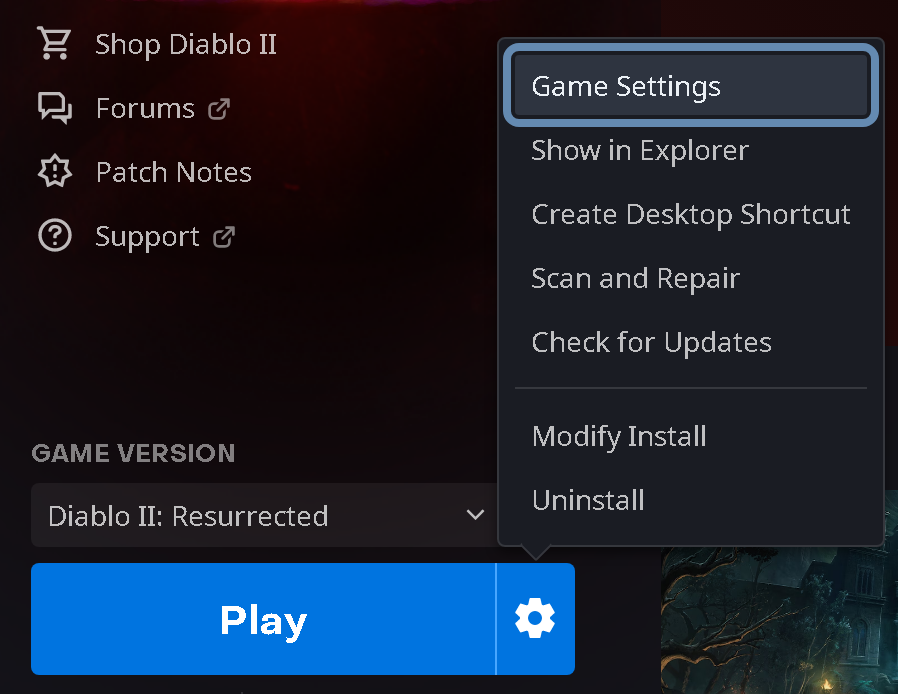
Click the white wheel next to Play & click “Game Settings”.
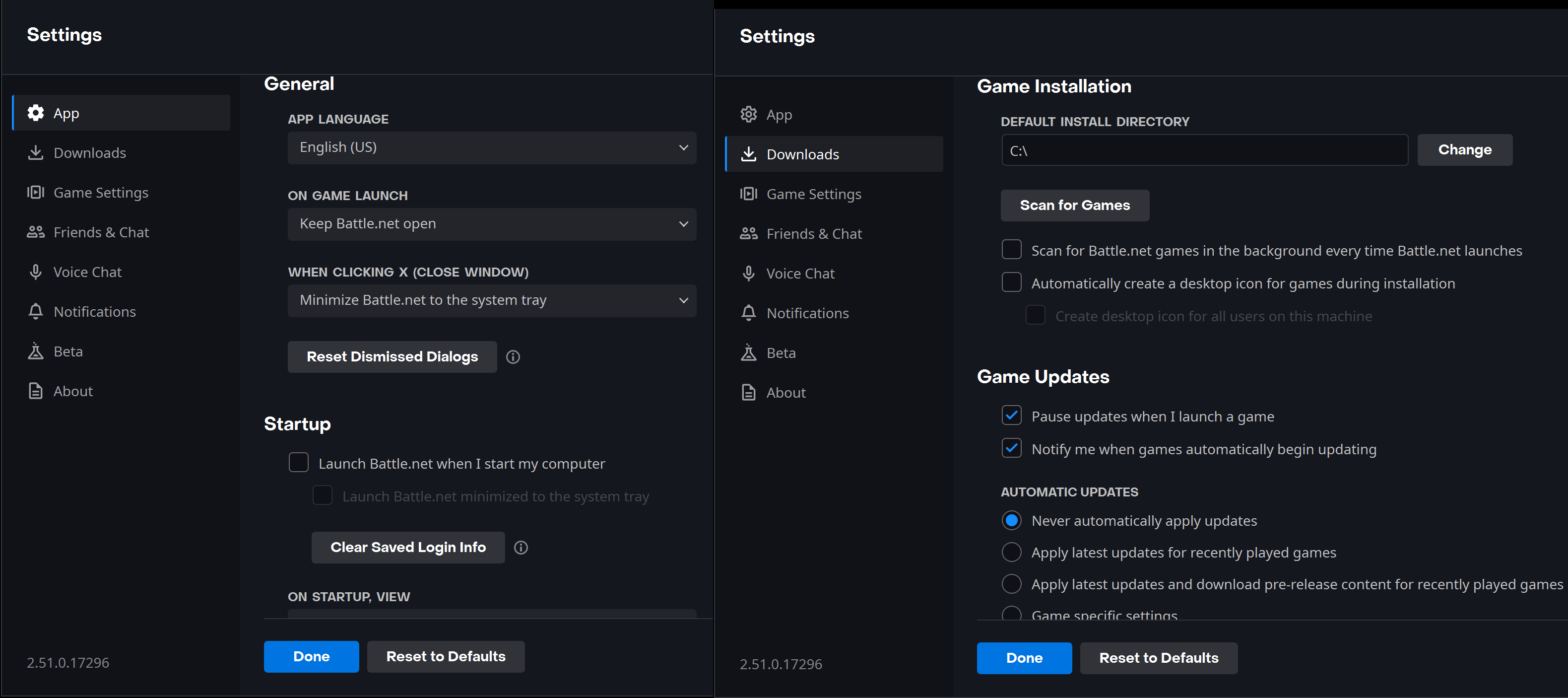
Summary of Battle.net Desktop App Settings & Diablo II Resurrected Settings:
Can change if Battle.net Launches when you start your PC
Change what happens on Game Launch (keeping the Battle.net app open or closing, etc)
The App's Language + Diablo II's Installed languages & even the text or speech languages can all be changed.
You can change the default Installation Directory for games to wherever you want. For example, if you changed this to C:\ then the next time you reinstall the game it will default to:
C:\Diablo II Resurrected\
Most importantly you can change how "Automatic Updates" are applied.
You can have it automatically apply them or never automatically apply. If you choose never (recommended), the blue button says "Update" which lets you choose to push that to update the D2R.exe & related files to the current version. Sometimes game hotfixes can break a mod's stash or introduce temporary instability preventing gameplay until the mod gets a new version update.
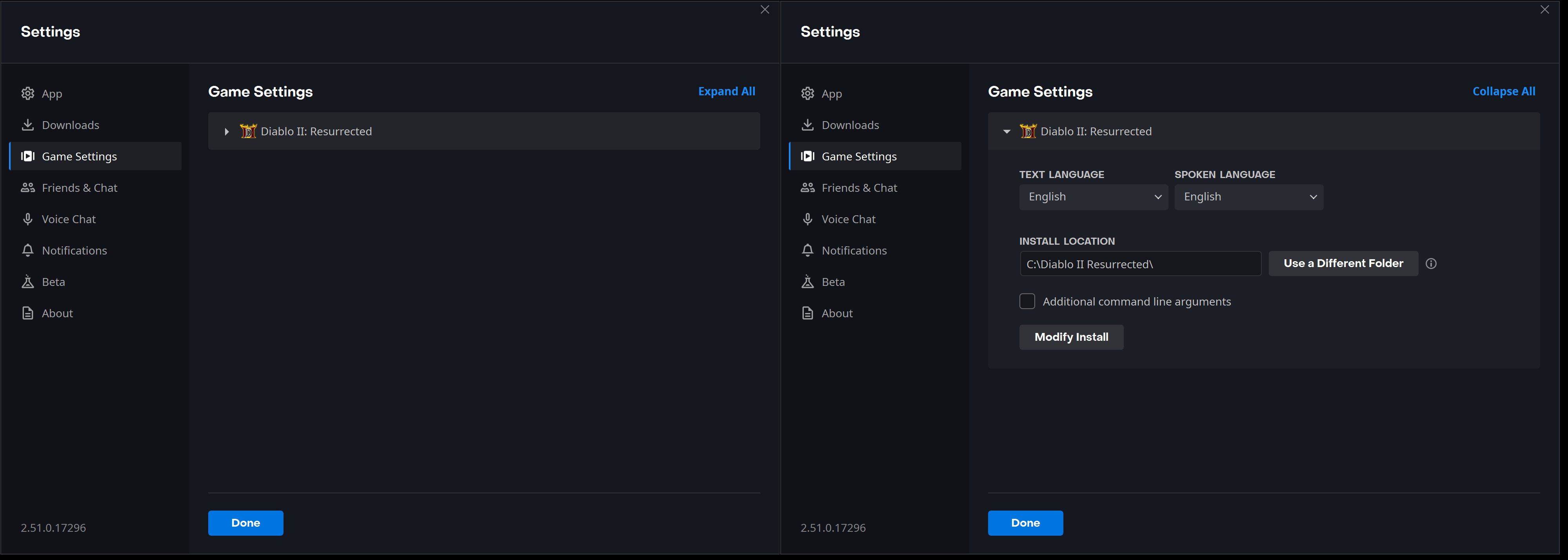
Below if you click on the “Game Settings” on the far left, then click on the “Diablo II: Resurrected” or “Expand All” to see more options.
It is NOT recommended to check the “Additional Command Line Arguments” box to launch mods because:
- The 30day DRM can't be cleared by hitting the “Play” button if you make that launch mods. As the DRM requires the vanilla game without mods to launch once every 30days.
- If you use this, then you're having Battle.net check for game updates every time you launch. If a troublesome hotfix is released, it might take time before Reimagined is able to fix offline changes the patch changed. Things like stash breaking & Identifying item crash events occured due to rolling hotfix patches that could've been avoided by not opening the app.
- Game loads slightly faster if you skip using the Battle.net Desktop App & instead use a shortcut pointing to D2R.exe & add your additional Command Line Arguments there. This is explained in the Reimagined Installation Guide with the link at the bottom of this page.
You can go to the Reimagined Installation Guide for installing the mod next.
Click here if you're curious about the differences between the Battle.net & Steam versions of the game.