Installing Diablo II Resurrected - Steam
Steps for how to install D2 - Steam version
If you already have Diablo II Resurrected installed, skip this & go straight to the: Reimagined Installation Guide
Owners of the Battle.net version of Diablo II Resurrected, instead go to the: Battlenet Installation Guide
Diablo II Resurrected - Steps for Installing the Steam Version
The purpose of this page is to show the required steps for installing the Diablo II Resurrected game, as you'll need the game to be installed before you can install the mod Reimagined which is covered in a different guide.
First you will need to create a Battle.net account (free) with a login/password with them. You will be purchasing the Diablo II Resurrected through the Steam platform in a bit later in this guide.
Step 1: Download the Steam App for Windows 10/11
Steam is used to play or purchase games on the Steam platform.
A separate Battle.net>Steam connection will be covered in here soon where Steam's version of the game will use your Battle.net login/password automatically.
Go here to download the Steam Application:
Store.steampowered.com/about
The Step 1 above is for the USA region, which uses the Global installer that should work for most countries.
Europe & Korea: Same location, the store will automatically detect your region and present prices in EU or Korean Won.
China: The official website linked above often works, but community features may be blocked without a VPN. You can access the official Chinese version with a limited game library at store.steamchina.com
Step 2: Install the Steam Application
Install the Steam App & create a Steam login/password if you have not done so already.
Important: You can only launch Diablo II Resurrected on Steam if you purchased the game on Steam!
Step 3: Connecting your Battle.net & Steam accounts
This is required so that the game can use your battle.net login & password automatically anytime you're playing with the Steam version.
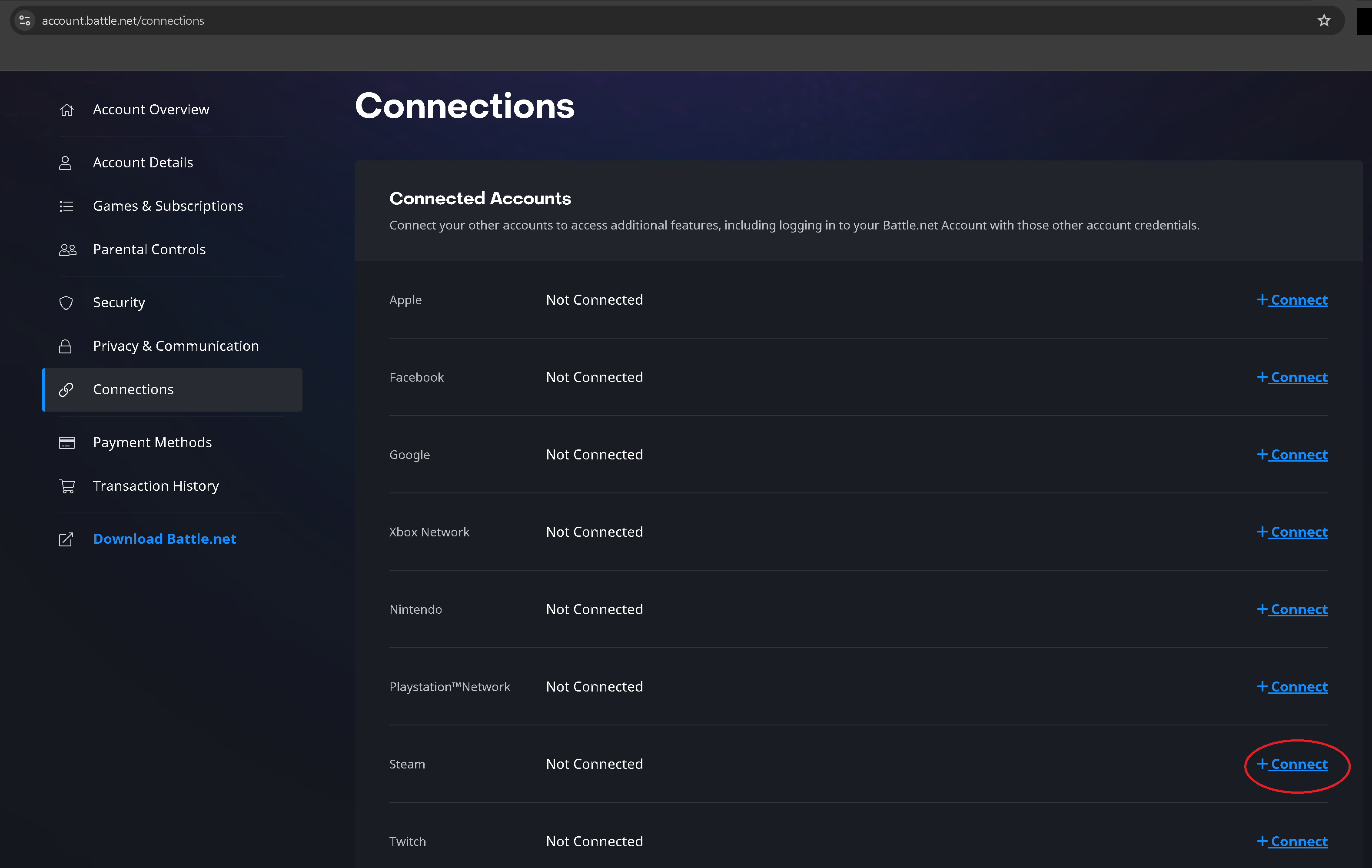
Go to the website battle.net & click on your account, then click on “Connections” on the left as seen in the picture below.
Alternatively you can go here: account.battle.net/connections
Find “Steam” on the list and click "+Connect" as seen in the red circle in the picture below.
Warning: A new steam account cannot be linked for one year after disconnecting from Battle.net. (disconnect and reconnect 365 day cooldown period). Reconnecting the same original Steam account does not trigger this cooldown, allowing for easier switching back & forth.
Only one Steam account can be linked to a Battle.net account at a time.
Click “Continue” to go to the Steam website and follow the instructions.
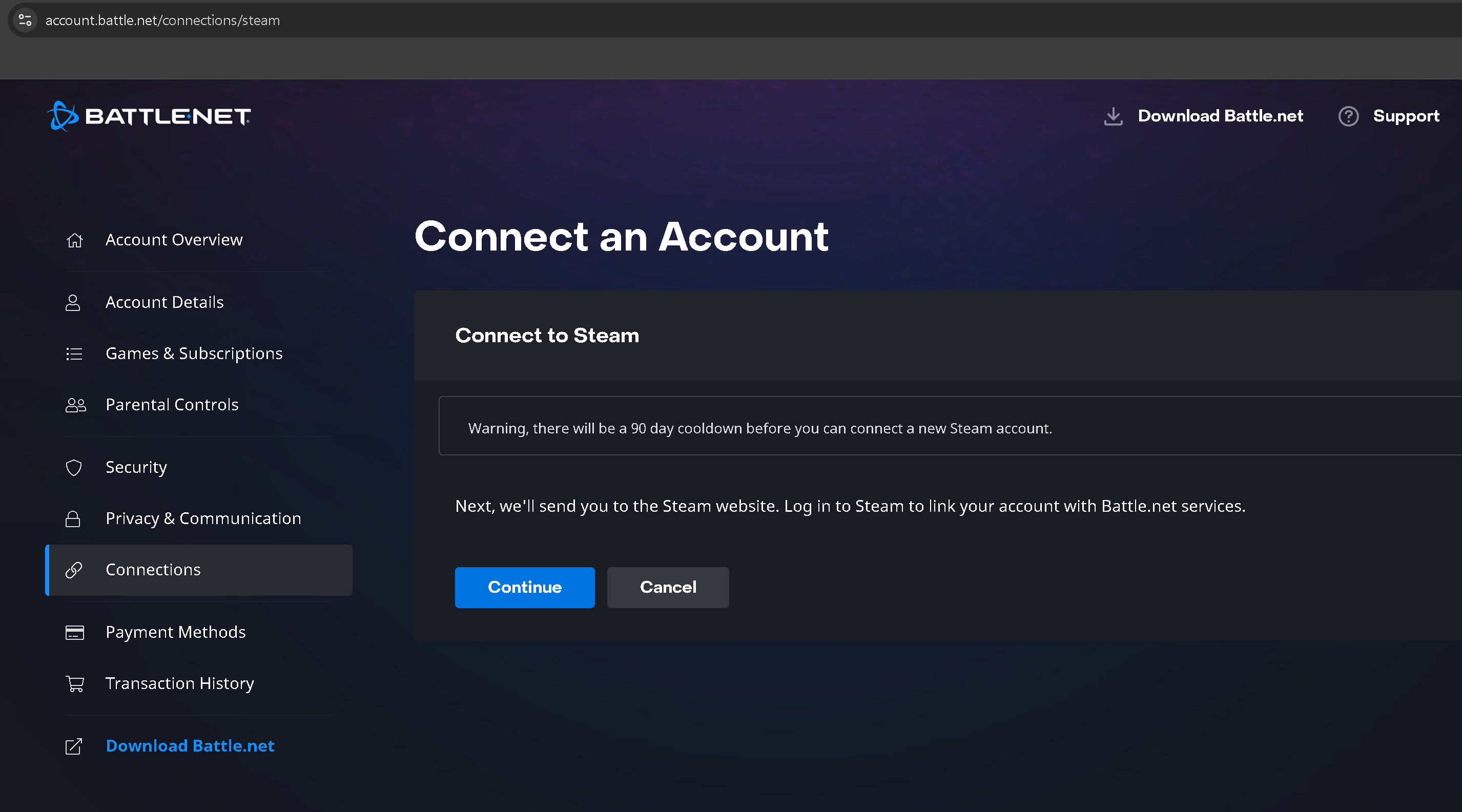
If successful the Battle.net account page from earlier looks like the picture below, where it says it's connected to your Steam username & profile picture. Now any purchased games on Steam will use your Battle.net login & password information automatically.

When using the Steam version of Diablo II Resurrected, the Battle.net Desktop App is no longer needed! Also Steam is forced open anytime you play Diablo II Resurrected, even when using a shortcut pointing to D2R.exe.
Step 4: Search for Diablo II Resurrected, Pay for the game & Install in Steam
Search for Diablo II Resurrected in steam & pay for it.
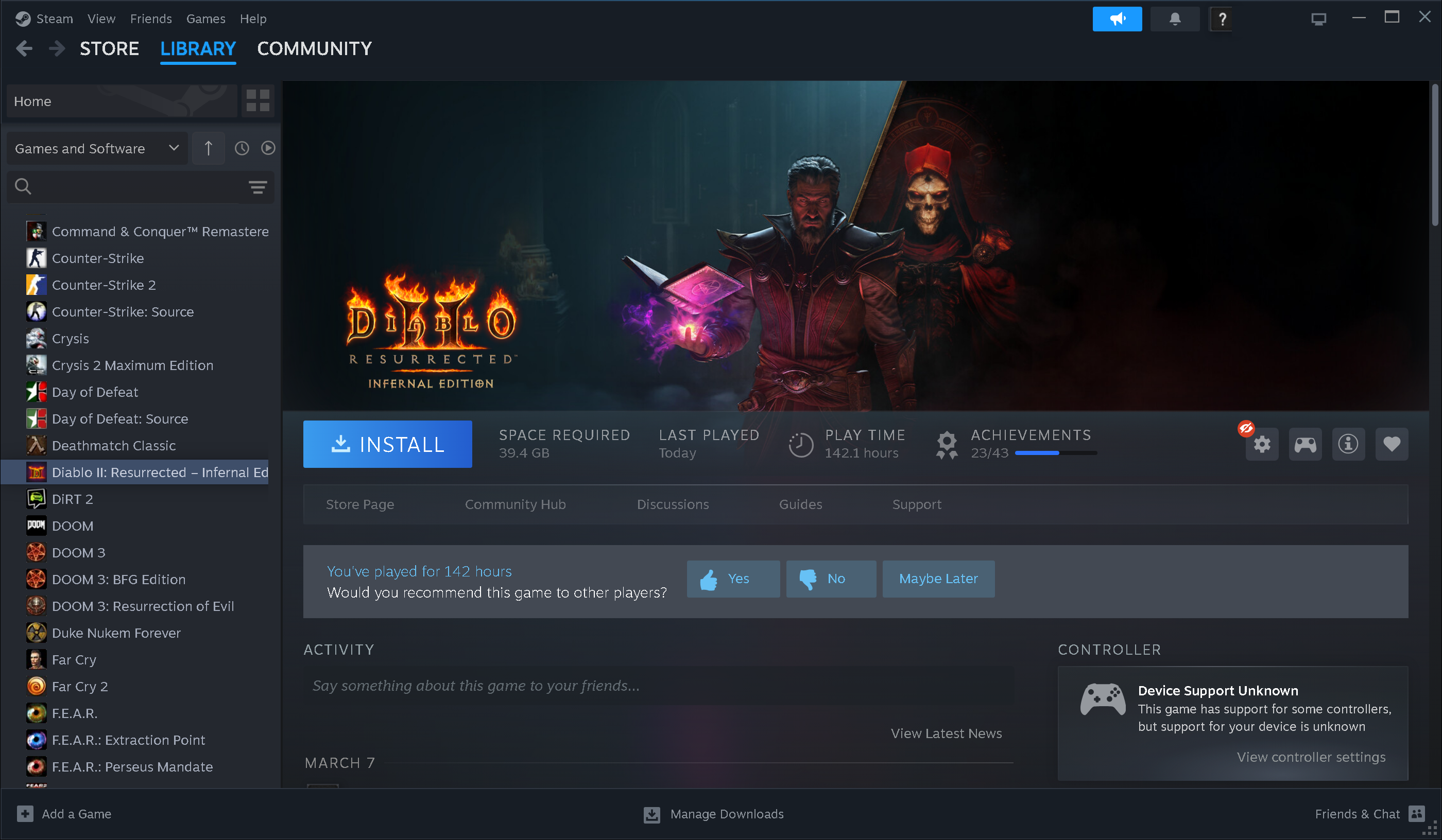
Now click on Library, where games you own are listed. Clicking on the game shows the page listed below. Click the big blue “Install” button.
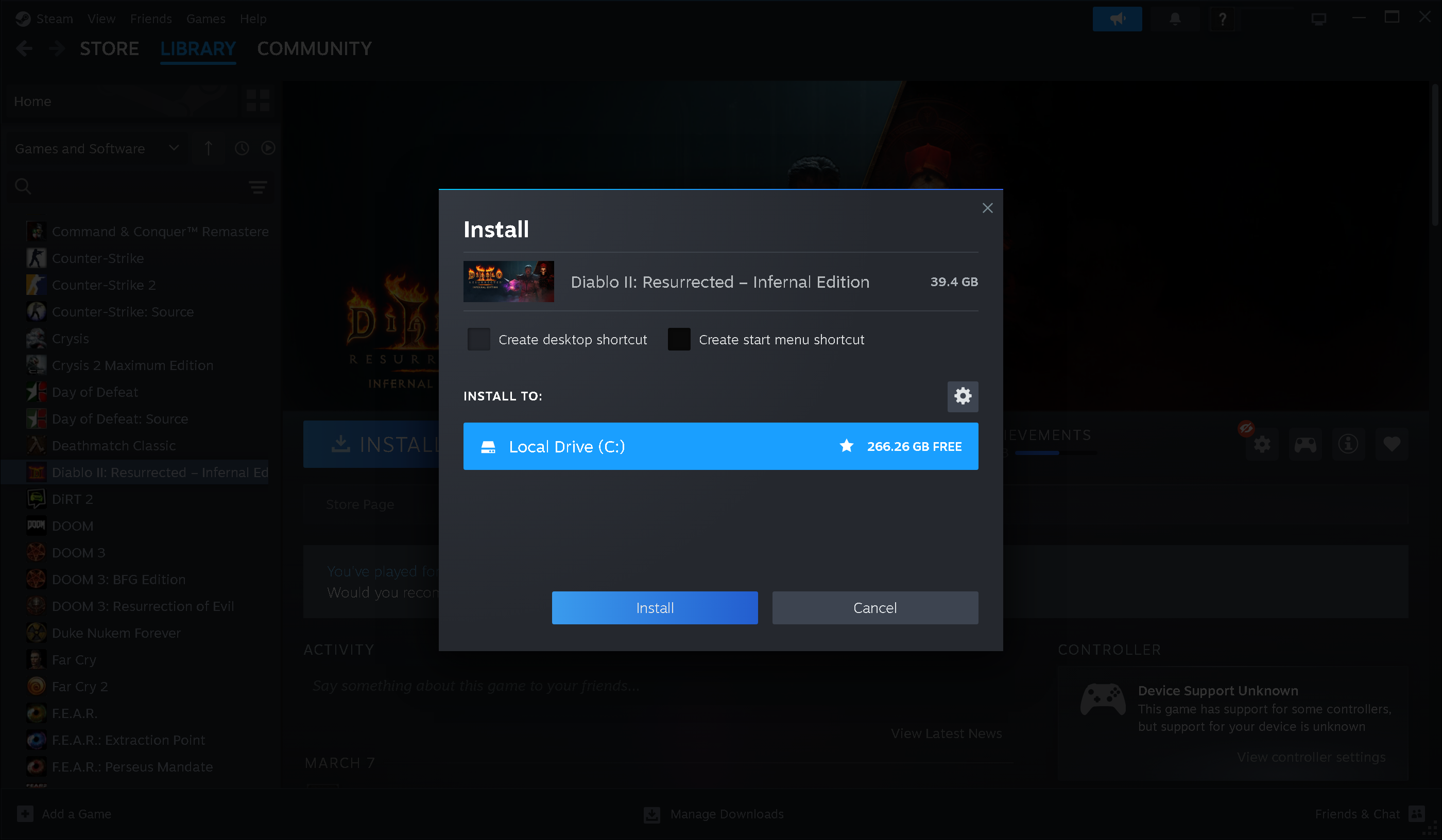
Step 5: Installation Settings (Drive location, Shortcuts)
Recommend to uncheck both shortcut checkboxes. The reason is the default shortcuts are actually web url links that do not point to D2R.exe & can not be used with Command Line Arguments to launch Mods. Instead it's better to manually create shortcut links to D2R.exe, which is covered in the Reimagined Installation Guide.
Step 6: Installs the game & is ready to Play!
The blue button on the bottom left changes depending on the status of the installation process.
It will change to Play when the game has been fully installed. You can now go to the Reimagined Installation Guide for installing the mod next.
Below are some useful tips, but the rest of this page are optional steps.
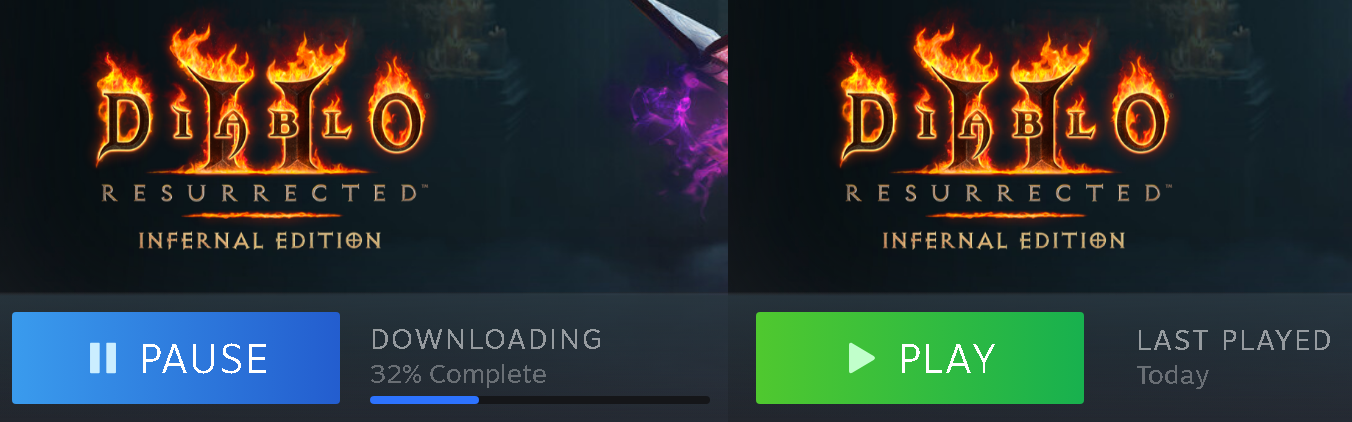
The Reimagined mod is always designed to work with the current version of Diablo II Resurrected. When opening Steam, the Diablo II Resurrected game force installs any updates so the game is always up to date.
(Optional) Customizing the Steam Diablo II Resurrected Settings
Right-click on Diablo II Resurrected & click “Properties”.
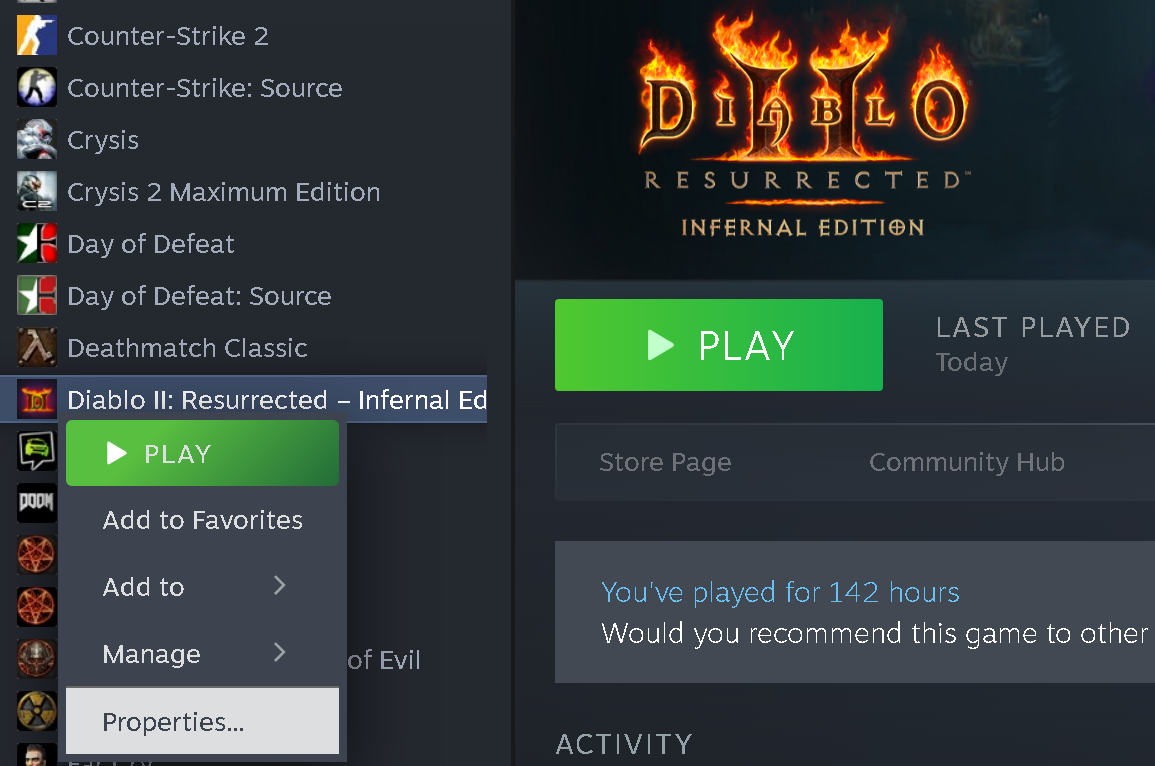
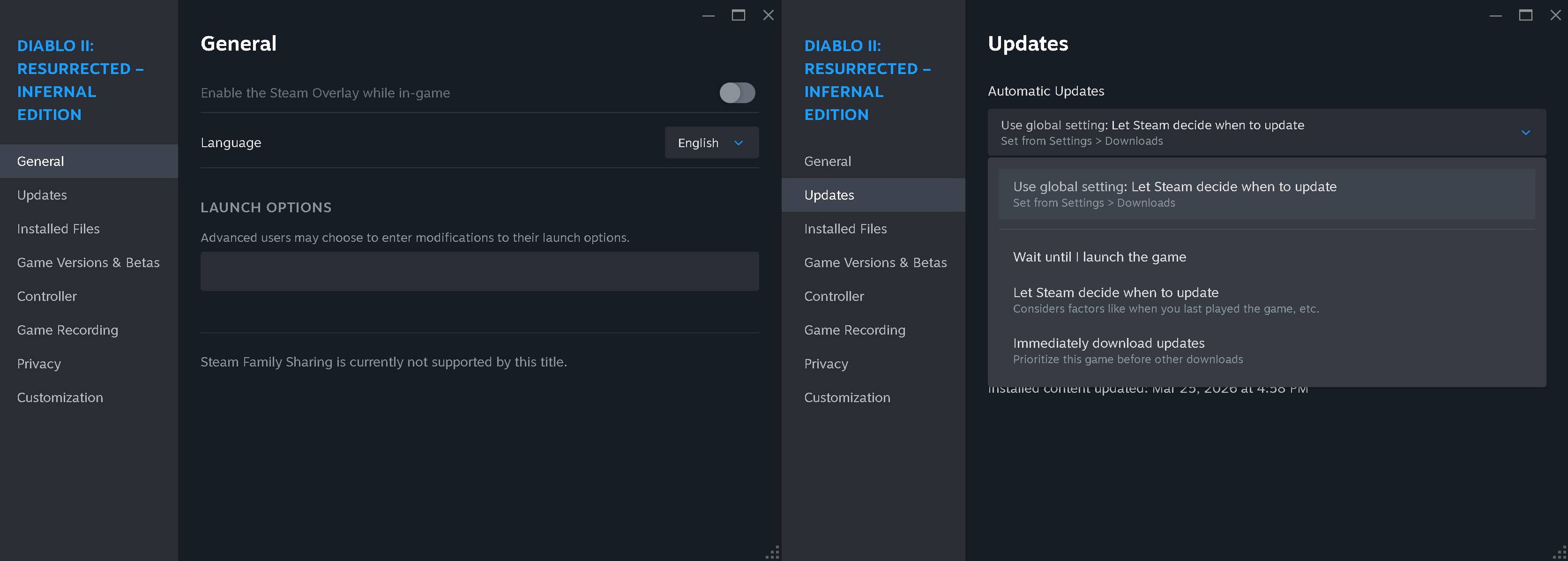
As shown below under “Launch Options” it's upto you if you want to use this.
Steam's built-in “Command Line Arguments” (CLI) box can be used to launch mods. When using command lines here, the game starts up like normal. Alternatively when using them inside a shortcut, an extra dialog box pops up everytime you launch the game.
The 30 day DRM can not be cleared by starting the game in Steam if you make Steam directly launch mods only. As the DRM requires the vanilla game without mods to launch once every 30 days! There is a possibility this isn't the case, as only the Steam version can access the internet when Mods are active unlike the Battle.net verison.
Not much else can be changed with the Steam version. Updates are pretty much forced regardless of which “Automatic Updates” choice as shown in the screenshot. Updates are checked when launching Steam & running D2R.exe also forces Steam to run too. There's no way to change that.
You can go to the Reimagined Installation Guide for installing the mod next.
Click here if you're curious about the differences between the Battle.net & Steam versions of the game.